
Installation#
Napari is still considered alpha phase software and may not install correctly on the first attempt, if that happens please open an issue with us here. Or reach out to the napari developers directly here.
Note
Only Python 3.7, 3.8, 3.9 are supported, 3.10 and later are not.
If not already installed, you can install miniconda here.
Download the correct installer for your OS (Mac, Linux, Windows).
After installing conda, open a new terminal or command prompt window.
Verify conda installed correctly with:
$ conda --help
Note
If you get a “conda not found error” the most likely cause is that the path wasn’t updated correctly. Try restarting the terminal or command prompt window. If that doesn’t work then see fixing conda path on Mac/Linux or fixing conda path on Windows.
If you’ve previously installed and used conda, it’s recommended (but optional) to create a new virtual environment in order to avoid dependency conflicts:
$ conda create -y -n empanada -c conda-forge python=3.9
$ conda activate empanada
Install napari with pip:
$ python -m pip install "napari[all]"
To verify installation, run:
$ napari
For alternative and more detailed installation instructions, see the official napari installation tutorial.
From here the easiest way to install empanada-napari is directly in napari.
From the “Plugins” menu, select “Install/Uninstall Plugins…”.

In the resulting window that opens, where it says “Install by name/URL”, type “empanada-napari”.
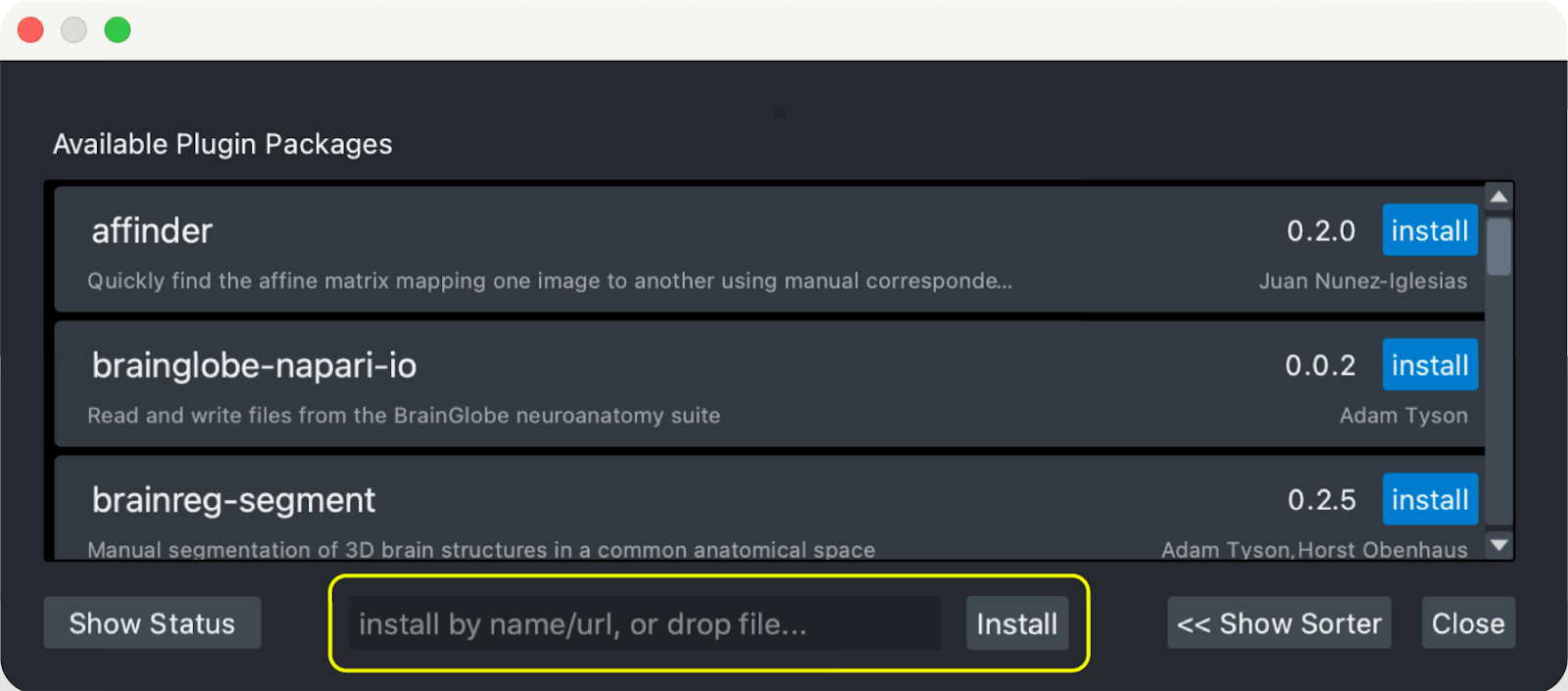
Click the “Install” button next to the input bar.
If installation was successful you should see empanada-napari in the Plugins menu. If you don’t, restart napari.
If you still don’t see it, try installing the plugin with pip:
$ pip install empanada-napari